

Is it tough to get the idea of how to connect AirPods to a laptop? If it is, then don’t worry, we have the solution for you.
Apple’s AirPods devices are so much popular, even in other devices. Because it has the standard Bluetooth settings, it connects with any device which has Bluetooth audio option.
So it can connect with a laptop also because it has a Bluetooth audio option. I know it’s a bit surprising for us that how it can be possible. Let’s see then and learn the process as well.
Also Check out How To Connect Airpods To MacBook || Simple And Easy Solutions Which is Also Known as How to Connect AirPods to Laptop Mac
Check out Some Airpods Accessories
Recommendation | Reason to Buy |
| Key Features:
|
Rumfo Magnetic Lanyard For AirPods Strap
| Key Features:
|


How To Connect AirPods To Laptop With Some Easy Steps
Here you need to follow a few steps to connect your AirPods device with your laptop. And we are going to guide you in this and let you know how to connect AirPods to a laptop. This process is for Windows 10 users who search for AirPods won’t connect to windows 10 problem. Let’s do it then to get the solution of how to connect AirPods to laptop windows 10.
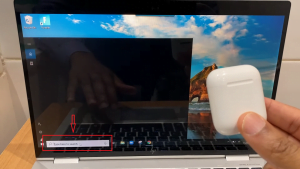
Step 1: Go To The Windows “Start Bar”
Credit: Team AG
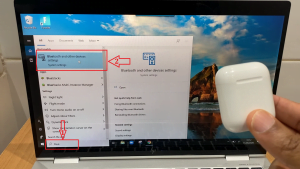
In the first step, go to the windows “Start Bar” which is on the left of the screen.
Step 2: Search The “Bluetooth Settings”
In the search bar, you can search for “Bluetooth settings,” or you can go directly to the place if you know where it is. Turn on the Bluetooth if it’s not on before.

Credit: Team AG
Step 3: “Bluetooth And Other Device Settings” Will Popup And On The Bluetooth Option
On the Bluetooth option, you will get a popup window where “Bluetooth And Other Device Setting” has the selection.
Step 4: Prepare The AirPods For Pairing
- Open the AirPods case and select the pairing button which is in the back section
- Press and hold the back button of the charging case for few seconds
- The white light will blink a couple of times not the green one
- Then it’s ready to pair or connect
- Leave the case open
If the white light is not blinking anymore, then you have to understand that its pairing mode is not working, so repeat the process of pairing.
Step 5: Click On The “Add Bluetooth Or Other Device”
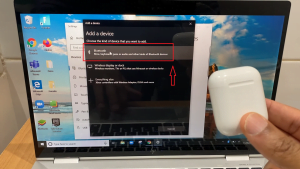
After preparing the AirPods for pairing, go back to the laptop screen and click on the “Add Bluetooth Or Other Device” option.

Credit: Team AG
Step 6: Again A Pop-up Window Will Appear And Click On Bluetooth Option
There will be one more popup window where you need to choose the “Bluetooth Option.”
Credit: Team AG
Step 7: Wait For Some Time Or A Little Longer
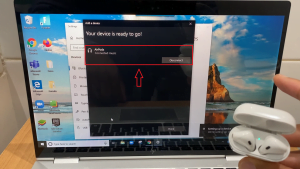
It will take some time to pair, or sometimes it takes a little bit longer. So you need to wait.

Credit: Team AG
Step 8: Double Click On Your AirPods Devices Name
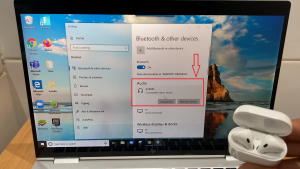
Then they will show your AirPods name. You need to double click on that name, and it will connect your AirPods device with the laptop.
Credit: Team AG
Problems You Will Face In This Connecting Process
Apple is offering its customers outstanding technology with its AirPods facilities. Still, when it comes to pairing with some other devices like a laptop, you have to face some problems.
● Touchpad Won’t Work
In other apple devices, the touchpad will work seamlessly, but when it comes to the laptop, it won’t give you the facility of the touchpad.
● Reconnect The Pairing Mode
You need to pair the device frequently if you use that AirPods on many devices. So follow step no 4 to pair with the laptop again.
If it’s not working, then close the case lid and try the same process likewise.
● Battery Issues
AirPods always have battery issues where you won’t be able to use them for more than 3 or 4 hours or it can be less than 3 hours.
Black Friday AirPods Deals: Get Airpods Pro for $194 and More on Best Sale Ever!

AirPods Cleaning Kit With Cleaning Kit For Laptop
Recommendation |
|
CaseSack Travel Protection and Storage Case helps you to carry the AirPods case without harm
| Key Features:
|
Enimatic Computer Cleaning Kit for Computers, Desktops, PCs, Laptops, and More to Clean and Organize
| Key Features:
|
Safe+Mate x Case-Mate – Airpods Cleaning Kit helps to clean the AirPods easily
| Key Features:
|


Wrap Up
Now it is so easy to connect one device with another so easily. But do you know how to connect AirPods to a laptop? If you don’t, then, I hope after reading this content, you will not be unaware anymore.
You can use your AirPods with your laptop too. You will face some problems with windows when you try to connect, but in the end, you will tackle those problems as well.
Check on Some more Airpods Related Hacks
For Charging Solution-
- Discover How To Charge Airpods Without Case Effortlessly
- How To Charge Airpods Case: Get An Ultimate Guide For Airpods & Airpods Pro
Other Airpods Accessories-
- Best Airpods Case Cover in the Average Range
- 7 Best AirPods Accessories
- 7 Best AirPods Alternatives: A Comprehensive Product Analysis
For Connection Solution-
Explore More
- Top 7 Best SSD
- 5 Best Managed Cloud Hosting Service | In-Depth Reviews
- OnePlus 8 || Flagship Killer to Killer Flagship
- New Dell XPS 17– Ultimate MacBook Pro Replacement??
- How to Create Hosting Packages in Centos Web Panel(CWP)
- How to update date.timezone from cPanel
- How to increase the Upload Max FileSize limit in cPanel
- How to enable PHP error reporting in cPanel.
- How to Setup Nameservers & Hostname in Centos Web Panel (CWP)
- How to Install CentOS Web Panel (CWP) on Centos 7
- iPhone SE vs Google Pixel 3a || Make The Right Buy
- Ryzen 3100 and 3300x || Is Intel in trouble?
- Cloudways Vs Siteground – Which Wins The Battle?